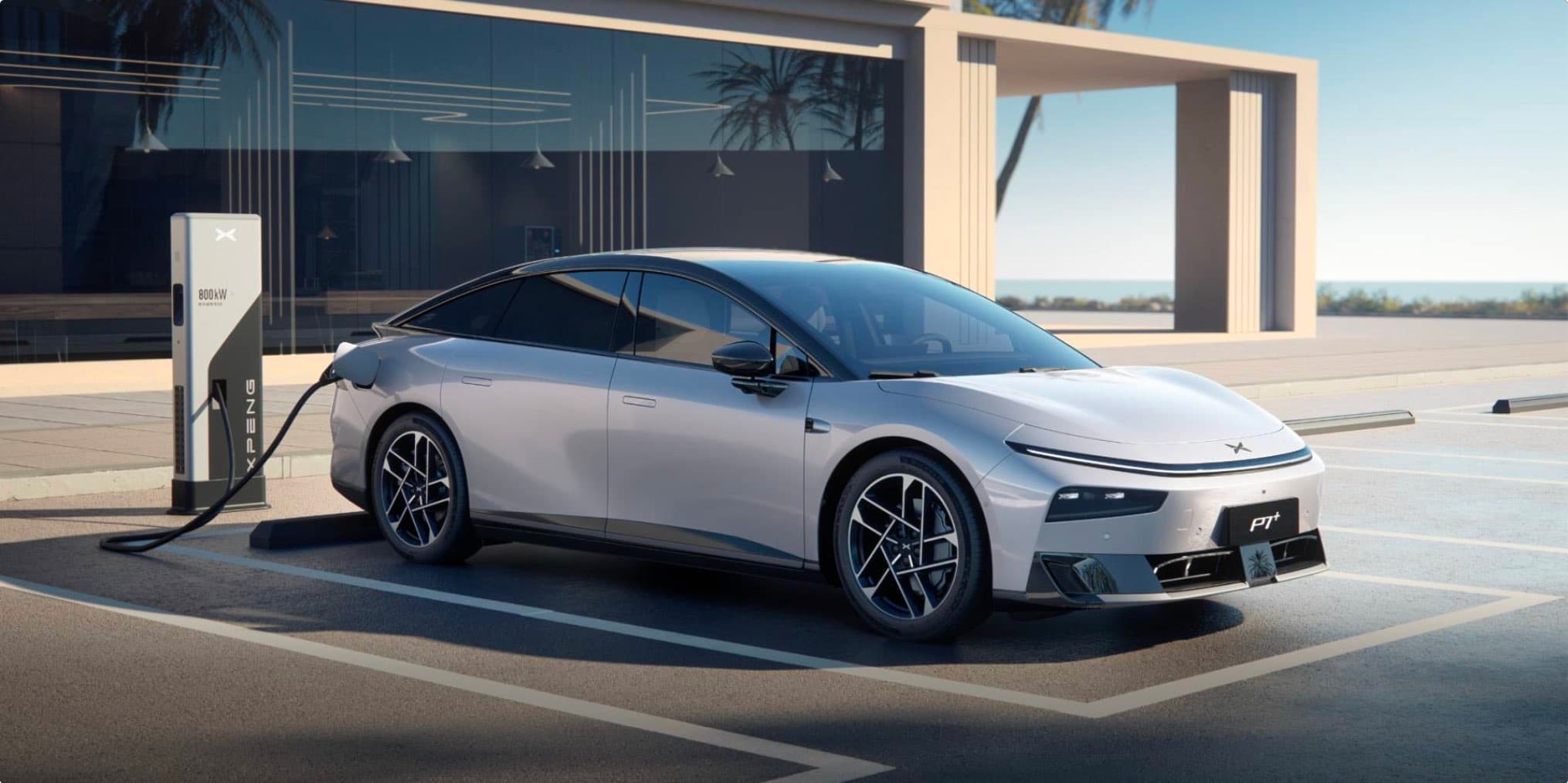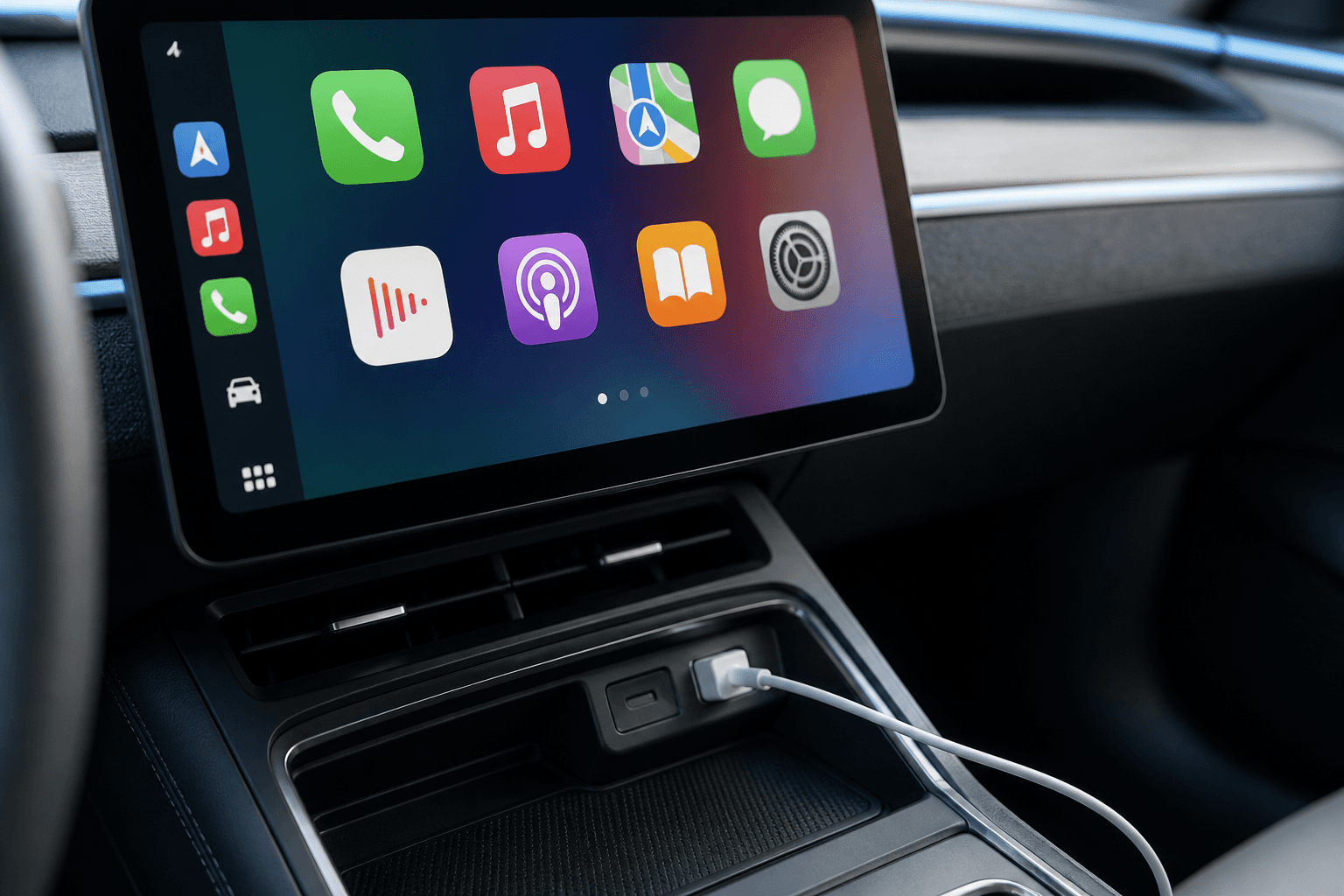
Apple CarPlay and Android Auto bring navigation, music, messages, and selected smartphone apps to an Xpeng’s central display. The available connection methods depend on the vehicle model, model year, and installed XOS software version. Before starting the setup process, you should therefore check that the vehicle is up to date.
CarPlay and Android Auto complement Xpeng’s operating system. Vehicle functions such as climate control, charging schedules, and driver assistance systems remain part of XOS.
Check the requirements
Your smartphone needs an up-to-date operating system. On the iPhone, Siri must be enabled. On modern Android devices, Android Auto is already integrated into the operating system; older versions may require a separate app.
Enable Bluetooth and Wi-Fi on your smartphone. For a wired connection, you will also need a USB cable that supports data transfer. Charging-only cables will not work. If possible, use the designated USB port in the vehicle, as not every port supports a data connection.
- Xpeng with a supported and up-to-date version of XOS
- Compatible iPhone or Android smartphone
- Bluetooth and Wi-Fi enabled
- Optionally, a high-quality USB data cable
Set up Apple CarPlay
- Switch on the vehicle and keep it parked during setup.
- In the Xpeng infotainment system, open the section for smartphone connections or Apple CarPlay.
- Enable Bluetooth and Wi-Fi on the iPhone. Check the Siri settings to make sure the voice assistant is switched on.
- Select the Xpeng in the iPhone’s Bluetooth list, or select the iPhone in the vehicle’s device list.
- Compare the pairing code shown on both displays and confirm it.
- Then allow CarPlay to be used and grant the requested permissions. The CarPlay interface should appear after a few seconds.
If your Xpeng only supports CarPlay via cable or wireless pairing does not work, connect the iPhone to the USB data port. Unlock the device and confirm the CarPlay prompt. Once an iPhone has been set up, it can connect automatically in future if wireless connectivity is supported.
Set up Android Auto
- Enable Bluetooth and Wi-Fi on the Android smartphone.
- In the vehicle, open the Android Auto or smartphone management section.
- Start pairing and select the desired phone.
- Confirm the matching pairing code on the smartphone and vehicle display.
- Grant Android Auto the required permissions, such as access to contacts, calls, notifications, and location.
- Follow the instructions on both displays until the Android Auto interface launches.
Depending on the Xpeng model and software version, Android Auto may require a USB connection. Unlock the smartphone the first time you connect it and use a data cable. If the phone only charges, the cable or USB port being used is often the cause.
CarPlay vs. Android Auto
| Feature | Apple CarPlay | Android Auto |
|---|---|---|
| Smartphone | iPhone | Android device |
| Voice control | Siri | Google Assistant |
| Connection | Wireless or via USB, depending on the vehicle | Wireless or via USB, depending on the vehicle |
| Typical content | Navigation, calls, music, messages | Navigation, calls, music, messages |
If the connection does not work
The connection option does not appear
First, check the XOS software version and look for available updates in the vehicle menu. Support may vary depending on the model, region, and software version. Then restart the vehicle display and smartphone. For the vehicle, restarting the infotainment system using the method described in the owner’s manual is often sufficient.
The smartphone does not connect automatically
Delete the existing pairing on both devices and set it up again. On the smartphone, remove the Xpeng from both the Bluetooth list and the CarPlay or Android Auto settings. If multiple known phones are stored in the vehicle, another device may be taking priority for the automatic connection.
Disconnections or delayed response
With a wireless connection, disabled Wi-Fi, power-saving modes, or interference from other devices can cause problems. When using USB, an unstable cable often leads to frequent disconnections. Try a different data cable, preferably a short one, and check the port for dirt or debris.
Switch between smartphones
If multiple phones are stored, you can usually select the active device using the smartphone or Bluetooth management settings in XOS. If you want a new phone to have permanent priority, first disconnect the currently active device. Remove smartphones you no longer use from the list to ensure that automatic selection works reliably.
Do not configure destinations, playlists, or permissions while driving. Complete the initial setup while parked, and use voice control or the steering-wheel controls when on the road.