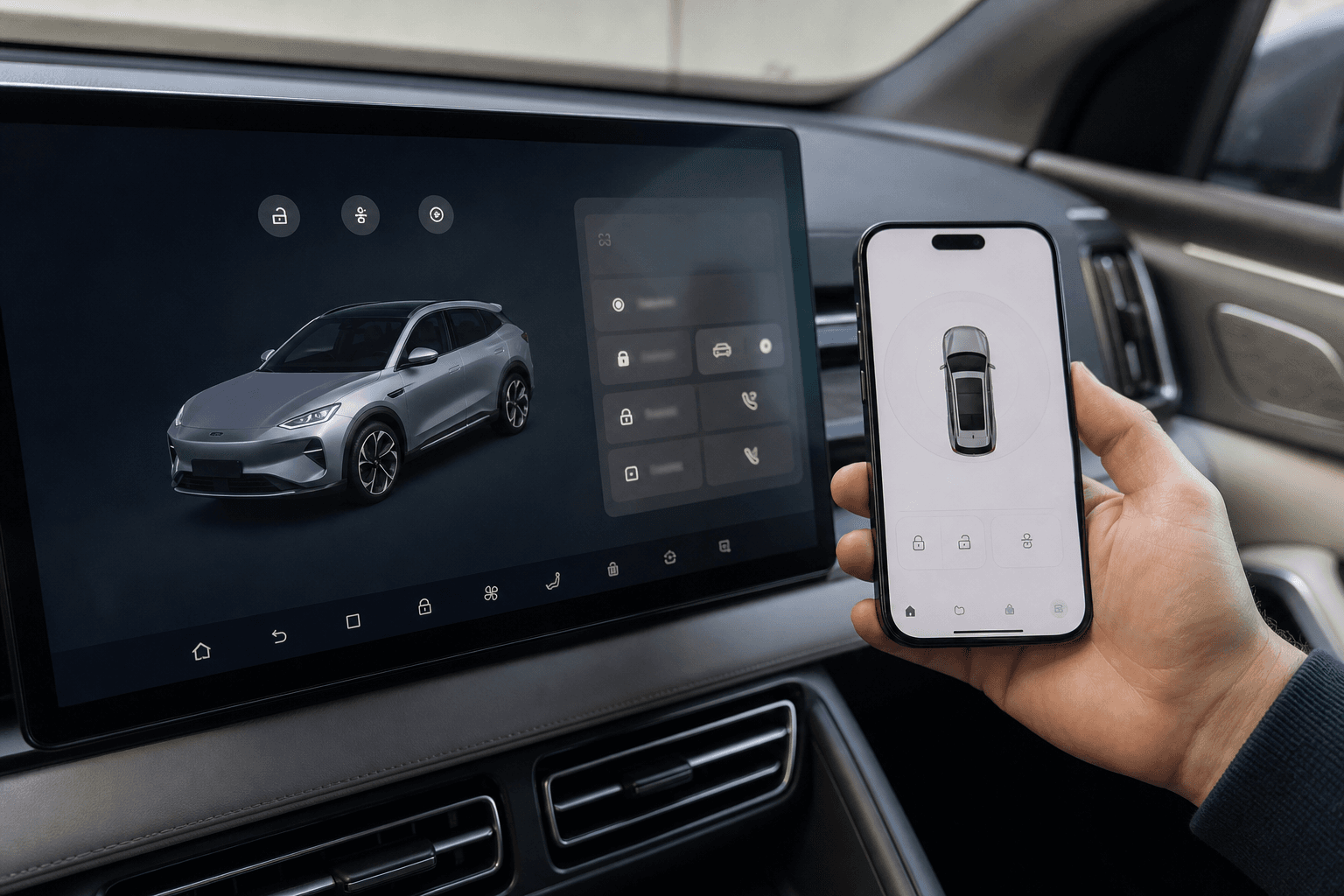
Depending on the model and equipment, the BYD app can be used to remotely check or control features including the charge level, range, climate control, and lock status. Before these functions are available, the user account and vehicle must be linked correctly. The exact names of individual menu items may vary due to app updates and depending on the vehicle model and country.
The key requirement is that the email address used for the account matches the vehicle information recorded when the vehicle was purchased or leased.
What you need before setup
Install the official BYD app from the Apple App Store or Google Play Store. Make sure it is from the correct publisher, as similarly named apps are not necessarily intended for European vehicles.
- Access to the email address registered with the dealer
- Vehicle identification number, abbreviated VIN (or FIN in German)
- Cellular reception for the smartphone and vehicle
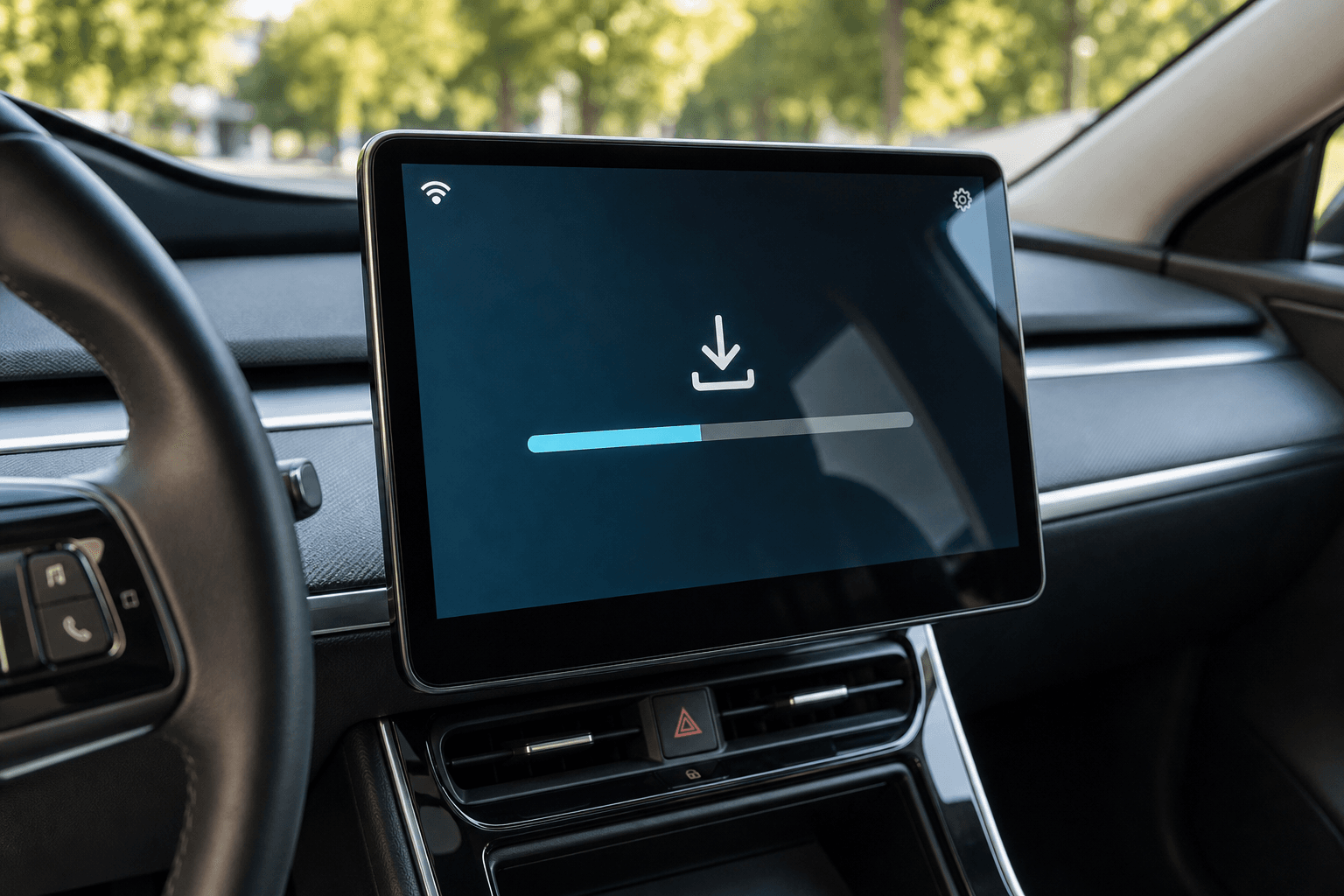
- The latest app version and, where applicable, the latest vehicle software
The vehicle should already have been delivered and assigned to your customer account in the dealer’s system. Immediately after handover, transferring the information to BYD’s systems may take some time.
How to create a BYD account step by step
- Open the app and check the region: Select the country or region where the vehicle was registered and delivered. Choosing the wrong region may prevent the car from being found.
- Start registration: If possible, use exactly the same email address that you gave the dealer. Check for typing errors, extra spaces, and automatically inserted capital letters.
- Retrieve the verification code: BYD usually sends a code by email. Also check your spam, promotions, and quarantine folders. The code is valid for a limited time only.
- Set a secure password: Use a unique password and do not share the login details with more people than necessary.
- Configure permissions: Notifications are useful for charging alerts. Location access should only be enabled if a desired function requires it.
Linking the vehicle to the app
For many European BYD vehicles, the initial assignment is handled by the dealer or importer. Once activation has been completed successfully, the vehicle automatically appears in the signed-in account. Other versions of the app may require you to enter the VIN, provide an activation code, or confirm the connection in the vehicle.
If the car does not appear, do not immediately create a second account. First check the email address and region. Then contact the dealer that delivered the vehicle and ask them to verify the vehicle’s digital assignment. Have the VIN, handover date, and registered email address ready.
After the vehicle has been linked successfully, the initial data transfer may be delayed. Vehicle in an area with no cellular reception → Status information may remain unchanged even though the app has been set up correctly. If necessary, park the car outside, switch it on briefly, and then refresh the app.
Common errors and appropriate solutions
| Problem | Likely cause | Solution |
|---|---|---|
| Verification code does not arrive | Incorrect address, spam filter, or delay | Check the address, search the relevant folders, and only then request a new code |
| Vehicle is not displayed | Different email address, incorrect region, or missing dealer approval | Compare the account details and ask the dealer to check the assignment |
| Status is outdated | Poor cellular reception or vehicle in sleep mode | Check reception, activate the vehicle, and reload the app |
| Remote controls do not respond | Expired session, missing permission, or server outage | Sign in again, check permissions, and try again later |
| Used vehicle cannot be linked | Vehicle is still linked to the previous owner’s account | Have the previous link removed through the seller, dealer, or BYD support |
Additional users and selling the vehicle
Where possible, use the designated sharing or key function for additional drivers. Sharing the main password makes it more difficult to control access and notifications. The multi-user features available depend on the model, software version, and region.
Before selling the vehicle, delete personal data from the infotainment system and remove the app link. Also remove saved destinations, contacts, Bluetooth devices, and digital keys. The buyer should then use their own account. If the existing link remains in place, reassigning the vehicle may take unnecessarily long.
When support needs to help
Reinstalling the app can resolve local app errors, but it cannot correct an incorrect assignment in BYD’s system. If the vehicle remains unavailable despite the correct region and email address, the dealer is usually the first point of contact. When submitting a request, screenshots of the error message, the smartphone model, operating system, app version, and VIN can be helpful. Never share passwords or complete verification codes.