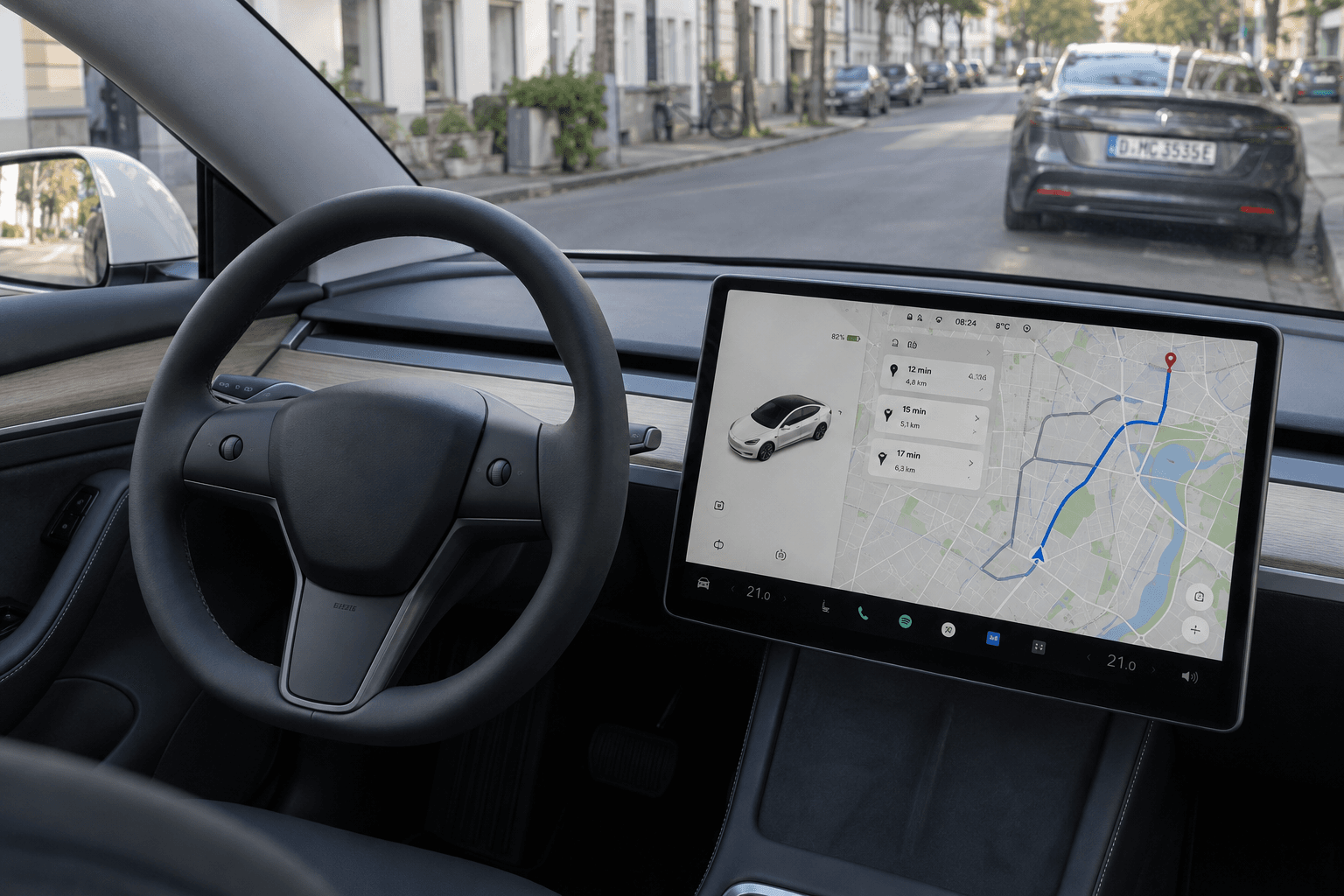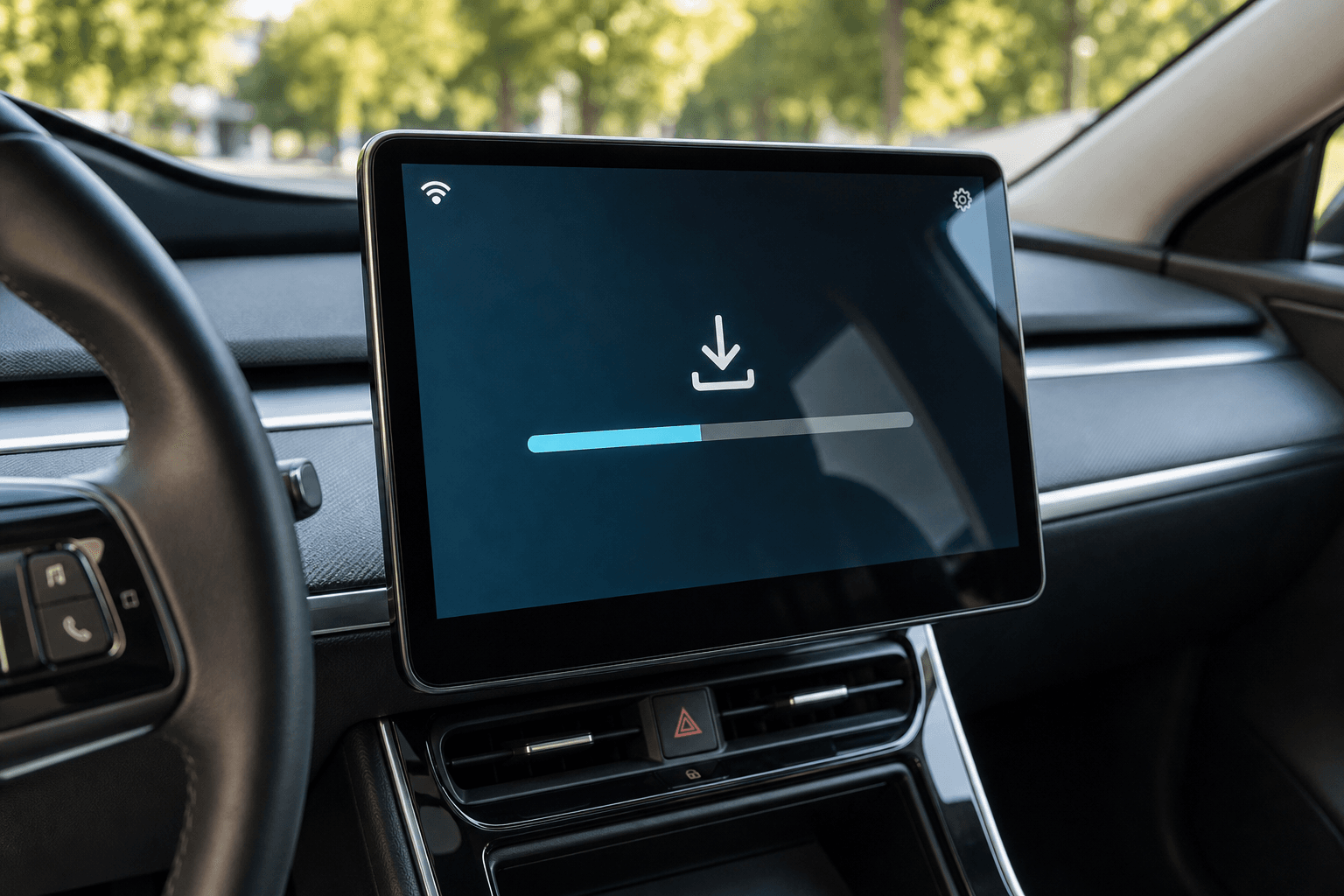
Tesla updates many vehicle functions through over-the-air updates. New software may affect the user interface, navigation, charging plans, driver assistance systems or bug fixes. A visit to a service center is normally not required. However, an update does not start on all vehicles at the same time, and the download and installation have different requirements.
How Tesla distributes updates
A new software version is usually rolled out in several waves. Tesla may initially provide it to a smaller group of vehicles before expanding the rollout. Factors such as the model, hardware configuration, region and currently installed version all play a role.
The fact that another Tesla vehicle has already received an update does not mean that the same version must immediately be available for your own car.
A delayed rollout is therefore usually not a sign of a problem. Tesla may also stop distributing a version or replace it with a revised release if issues emerge during the rollout. There is no option to download any chosen software version manually.
Why Wi-Fi matters
Larger vehicle updates are generally downloaded via Wi-Fi. The car’s cellular connection is sufficient for many standard online functions, but it is not a reliable substitute for downloading software. Safety-related or particularly important updates may be delivered differently.
The simplest option is to provide a Wi-Fi connection where the vehicle is usually parked. If your home network does not reach the garage or carport, possible solutions include a mesh access point, a suitably positioned range extender or a temporary mobile hotspot, depending on the building. Thick walls and concrete ceilings can significantly weaken the signal in underground parking garages.
Suitable Wi-Fi connection
- Stable signal at the actual parking location
- Sufficient data allowance when using a mobile hotspot
- No login page that regularly requires confirmation in a browser
- The vehicle remains within range whenever possible during the download
You can check the Wi-Fi status using the connection icon on the vehicle display. A weak network may cause the download to pause and resume later. This does not normally damage the vehicle software.
Checking for updates and choosing settings
In the vehicle menu, the Software section shows the installed version and information about available updates. Opening this screen prompts the vehicle to check the current status. However, checking repeatedly will not trigger an earlier rollout.
Depending on the software version, you may be able to select an update preference such as “Standard” or “Advanced.” The advanced option indicates that you are willing to receive new versions sooner. However, it guarantees neither immediate access nor inclusion in every initial rollout wave.
The difference between downloading and installing
| Phase | What happens? | Can the vehicle be used? |
|---|---|---|
| Download | The software files are usually transferred via Wi-Fi | Generally, yes |
| Preparation | The vehicle checks and processes the files | Usually, yes |
| Installation | Control units are updated and restarted | No |
A completed download therefore does not mean that the update has already been installed. Once the installation is ready, a notification appears in the vehicle and usually in the Tesla app as well. You can confirm the start there or schedule it for a later time.
Installing an update safely
- Finish your drive: Park the car in a safe location. It cannot be driven during the installation.
- Check the charge level: Make sure the vehicle has sufficient energy. It may refuse to install the update if the battery level is too low.
- Allow enough time: Do not start the update shortly before a necessary trip. The estimated duration may change.
- Leave the vehicle alone: Avoid opening doors or operating vehicle functions during the installation if possible.
- Read the release notes: Once the installation is complete, the release notes show new functions and changes where applicable to the vehicle.
During the process, the display, lights, ventilation or other systems may briefly activate or behave differently. Such effects can occur when individual control units restart and do not automatically indicate a fault. Update started → do not use the vehicle until the completion notification appears.
If no update appears or the download stalls
First, check whether the car has a reliable Wi-Fi connection. If necessary, move it to another location or restart the router or access point. You can then check the software menu to see whether the download resumes. Restarting the vehicle display may help with display issues, but it will not speed up a server-side rollout.
If a download remains unchanged for an extended period, the installation repeatedly fails or the vehicle displays a specific error message, request a service appointment or diagnostic check through the Tesla app. This is particularly important if other vehicle functions are also affected.
Checking important functions after the update
After major updates, it is worth briefly reviewing your personal settings. In particular, check the charging limit, departure schedule, driver assistance settings, navigation and preferred controls. Some functions are enabled only for specific hardware versions or regions. The release notes in your own vehicle are therefore the authoritative source, rather than feature lists from other users.