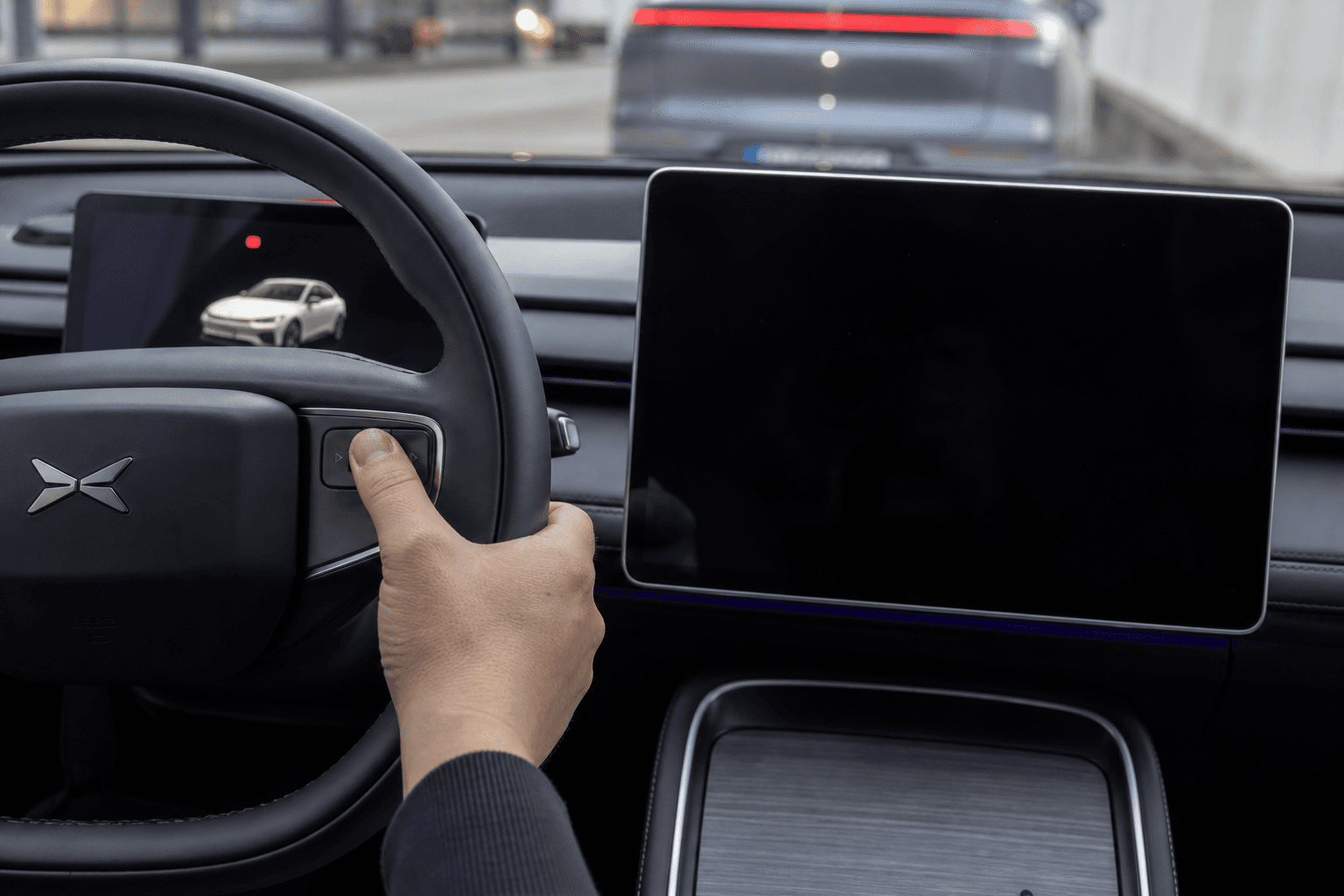
A black screen in an Xpeng does not automatically mean the display is defective. Often, the XOS infotainment system has frozen, an update was not completed properly, or the vehicle did not wake up correctly from sleep mode. The restart method that works depends on the model and the installed XOS version.
Even if the car can still be driven, a restart should only be performed while safely stopped with Park selected.
First check: Which display is affected?
If only the central touchscreen remains black while the driver display, lighting, and drive-ready status work normally, the issue is likely related to the infotainment system. However, if several displays fail at the same time or the vehicle cannot be made ready to drive, the power supply or a control unit may also be the cause.
| Observation | Likely cause | Recommended action |
|---|---|---|
| Only the central display is black | XOS or the display process is not responding | Try a system restart |
| Image visible, but touch controls do not work | User interface has frozen | Try a system restart |
| Several displays and functions have failed | Possible power supply fault | Perform a sleep cycle, then contact service |
| Warning lights, smoke, or an unusual smell | Potentially safety-critical fault | Stop the vehicle and call roadside assistance |
Restarting XOS safely
On many Xpeng models, the infotainment system can be restarted using a combination of steering-wheel buttons. However, the exact buttons may differ between the G6, G9, P7, and various software versions. This often involves pressing and holding two steering-wheel buttons simultaneously. Use only the combination described in your model’s digital vehicle manual as Restart infotainment or System restart.
Stop in a safe place, select Park, and, if necessary, end any active navigation or charging session.
Check the manual or Xpeng app for the model-specific button combination. Press and hold the specified steering-wheel buttons until the display switches off or the startup logo appears.
Release the buttons and do not use the touchscreen or steering-wheel buttons while the system is starting up.
Then check the camera views, navigation, cellular connection, Bluetooth, and audio.
During the restart, the screen, audio, and convenience functions may be temporarily unavailable. This is normal while the system reloads. If no image appears after a reasonable waiting period, do not repeat the process indefinitely.
If the restart does not work: Sleep cycle
A normal XOS restart primarily affects the infotainment system. A full sleep cycle, by contrast, also puts other control units into sleep mode. This may help if the vehicle did not wake up correctly after an update or after being parked for an extended period.
Park the vehicle safely and properly end any charging session that may be in progress.
Fully close the doors, windows, hood, and tailgate.
Exit and lock the car. Move the vehicle key and paired phone away from the immediate vicinity so that the vehicle is not repeatedly woken up.
Wait until the vehicle has fully entered sleep mode. Do not open any doors or send commands through the app during this time.
Then unlock the car normally and check the displays again.
Repeatedly unlocking the car or checking its status through the app → the sleep cycle may start over. The vehicle should therefore remain undisturbed during the waiting period.
What you should not do yourself
- Do not disconnect the 12-volt battery yourself
- Do not remove or replace fuses on suspicion alone
- Do not try button combinations from instructions for other Xpeng models
- Do not interrupt a software update by opening, starting, or charging the vehicle
Disconnecting the power supply can generate fault codes, cause settings to be lost, or corrupt an update in progress. Work on high-voltage components must always be left to qualified technicians.
When should you contact Xpeng service?
If the display remains black after a system restart and sleep cycle, the problem keeps returning, or cameras and safety-critical displays are affected, Xpeng service should check the fault memory. Note the model, XOS version, time, state of charge, and the action performed immediately before the issue occurred. A photo or video of the problem may also help.
If the driver display has failed, essential driving information is unavailable, or serious warning messages appear, do not continue driving the vehicle. Contact roadside assistance in this case. Once operation has been successfully restored, it is advisable to check the system settings for available updates, as newer XOS versions may resolve known stability issues.