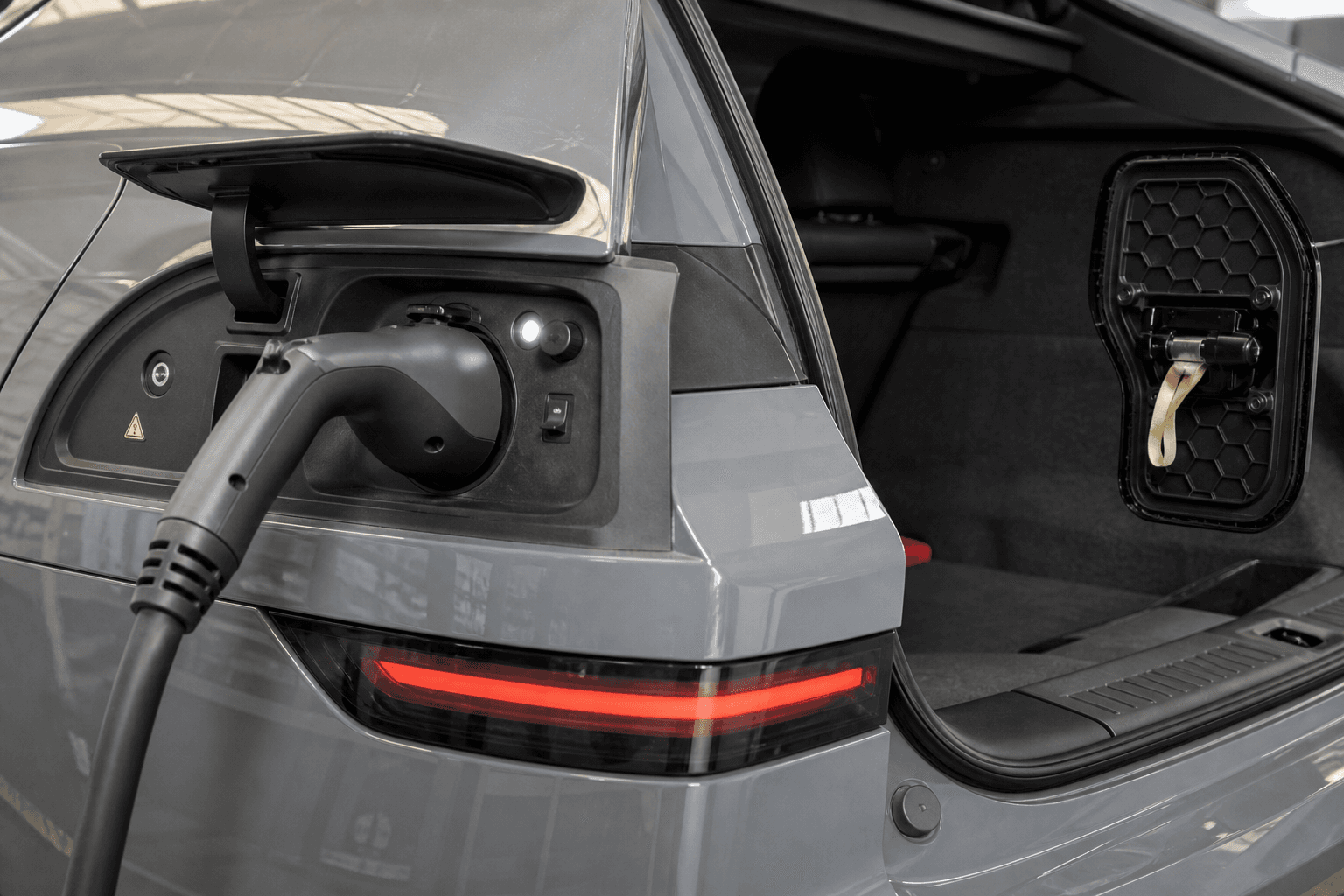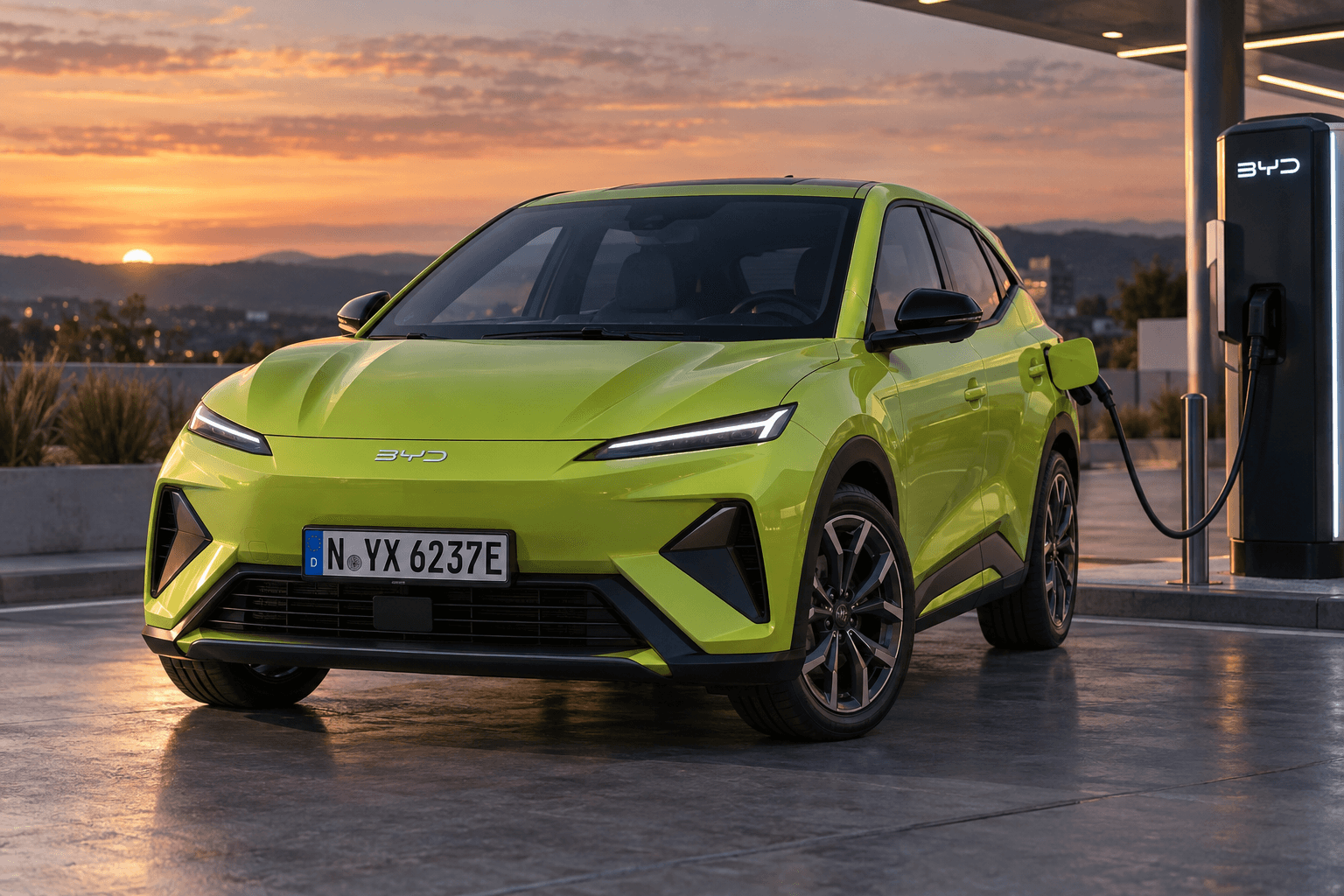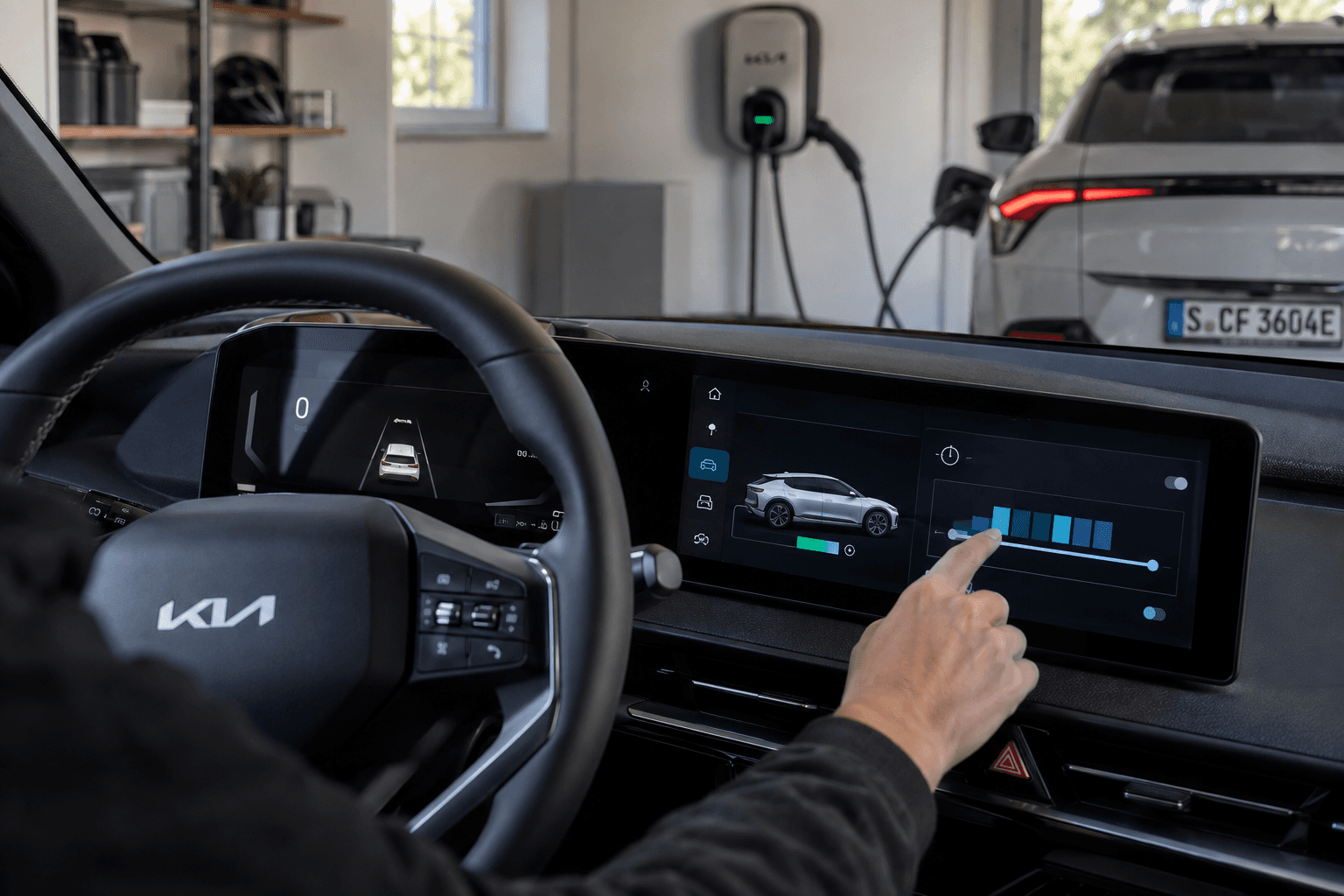
In many Kia electric cars, charging can be managed in three places: through the Kia Connect app, directly in the vehicle and via a smart home charger, also known as a wallbox. However, to ensure the car is reliably charged at the desired time, only one system should control the actual charging schedule. Menu names and available functions may vary depending on the model, model year, software version and wallbox.
The most important rule is: Either the vehicle or the wallbox should control when charging starts, not both at the same time.
Which setting belongs where?
| System | Suitable for | Important limitation |
|---|---|---|
| Kia Connect app | Remote access to the target charge level, departure time and climate control | Requires cellular reception and a working data connection |
| Vehicle | Reliable basic configuration and location-based charging times | The car must recognize the schedule and have saved it correctly |
| Wallbox | Electricity tariffs, surplus solar power and dynamic power control | Usually does not know the car’s state of charge directly |
The Kia Connect app is generally not an additional charging controller, but rather a means of remotely accessing the vehicle’s functions. A wallbox app, by contrast, operates independently. Changes made in the Kia app may take a short time to reach the vehicle.
Setting up a charging schedule in a Kia
- Set the target charge level: Select the desired maximum state of charge in the charging or EV menu. Supported models allow you to set separate limits for AC charging and DC fast charging.
- Save a departure time: Enter the days of the week and the time by which the vehicle should be ready. This information can also be used for preconditioning.
- Define an off-peak period: If your electricity tariff varies by time of day, you can set a preferred charging window. Depending on the selected setting, the Kia will charge either exclusively or preferably within this window.
- Check the charging location: Some functions only apply at a saved location. You should therefore check whether the vehicle correctly recognizes your home charging location.
- Perform a test run: Plug in the car and check in the vehicle or app whether it shows a scheduled charging start rather than immediate charging.
For everyday use, drivers often select a target charge level below 100%. Before a longer journey, it may make sense to increase the target temporarily. The appropriate long-term setting depends on your driving profile, range requirements and the manufacturer’s recommendations.
Using the Kia Connect app correctly
In the app, these functions can usually be found under Charging, EV or Scheduling. Depending on the vehicle, you can change charging limits, departure times and climate-control settings there. After saving your changes, you should receive confirmation that they were successfully sent to the car.
If a change does not take effect, first refresh the vehicle status. If the Kia is parked in an underground garage without sufficient cellular reception, a command may arrive late. In that case, adjusting the setting directly in the vehicle is more reliable. If menu options are missing entirely, this may be due to the equipment specification, region or software version.
Using the wallbox as the central controller
A smart wallbox is particularly useful when charging according to dynamic electricity prices or surplus solar power. In this setup, the Kia should generally permit charging, while the wallbox controls when power is supplied.
Continue to set the desired target charge level in the vehicle, but remove any conflicting narrow time windows. The wallbox will then start and stop the power supply according to its own schedule. Note that many wallboxes only record the amount of energy transferred, not the battery’s actual state of charge. A value shown by the wallbox is therefore not necessarily the same as the charge level displayed in the vehicle.
Vehicle-controlled charging
- Suitable for fixed departure times and simple overnight charging windows
- The target charge level and preconditioning remain closely linked
- The wallbox should remain enabled at all times
Wallbox-controlled charging
- Suitable for solar power, variable tariffs and load management
- The vehicle must not block charging with a second schedule
- Preconditioning can still be scheduled independently in the Kia
Common charging-schedule problems
If charging does not start, first check the cable connection, charging authorization and authentication at the wallbox. Then check the target charge level and charging windows in the Kia. Charging will also not start if the target charge level has already been reached.
A particularly common problem is that two schedules overlap: The wallbox supplies power while the car is waiting for a different time window → no energy flows. A charging window that is too short can also prevent the desired state of charge from being reached before departure.
After changes to your tariff, daylight saving time, home network or wallbox software, it is advisable to perform a quick test. Check not only when charging starts, but also when it ends and whether the scheduled preconditioning works.